
How to create a trigger flow:
-
Create a New Flow:
-
Select your website bot and navigate to the “Edit Your Chatflow” section.
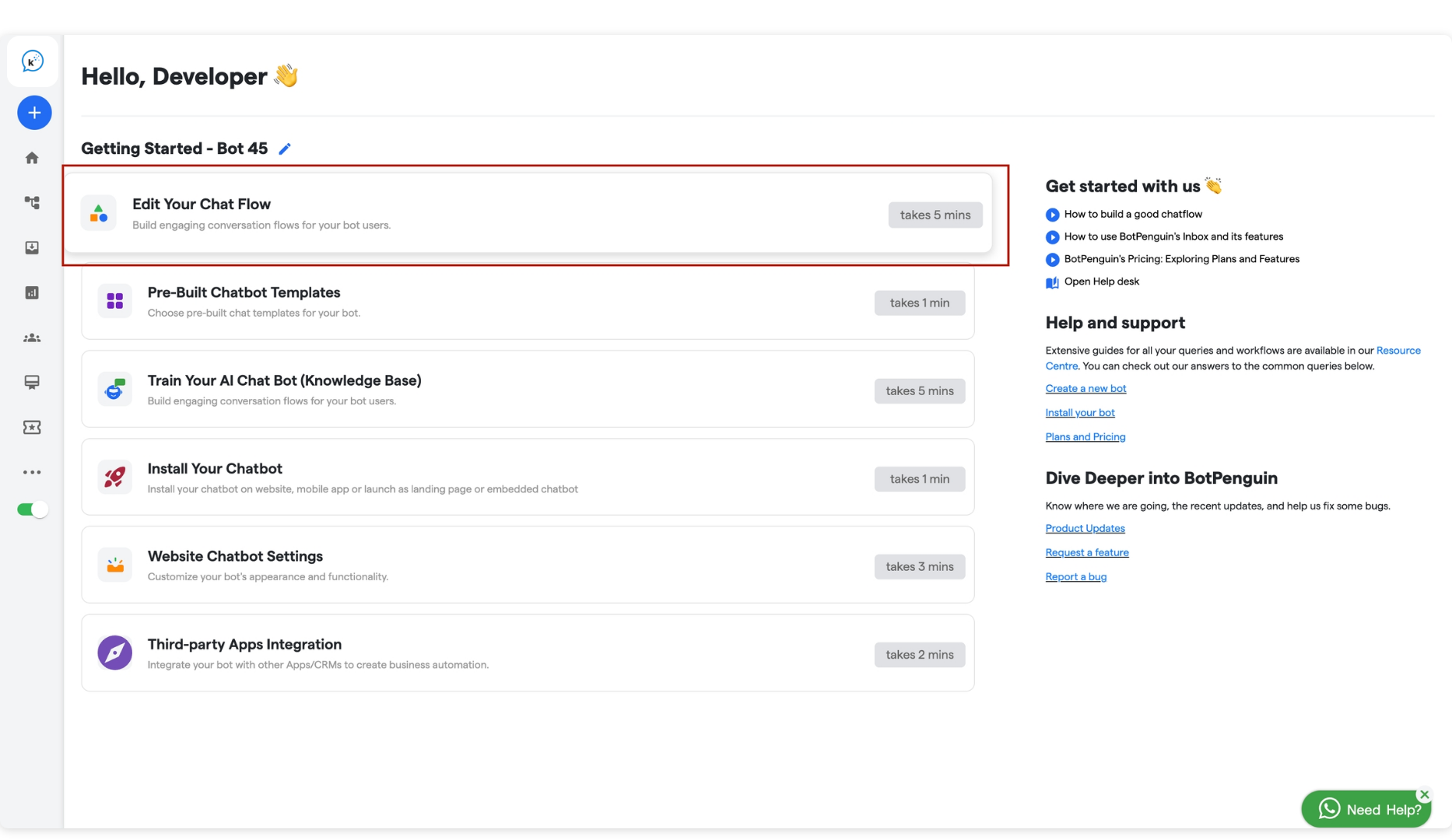
-
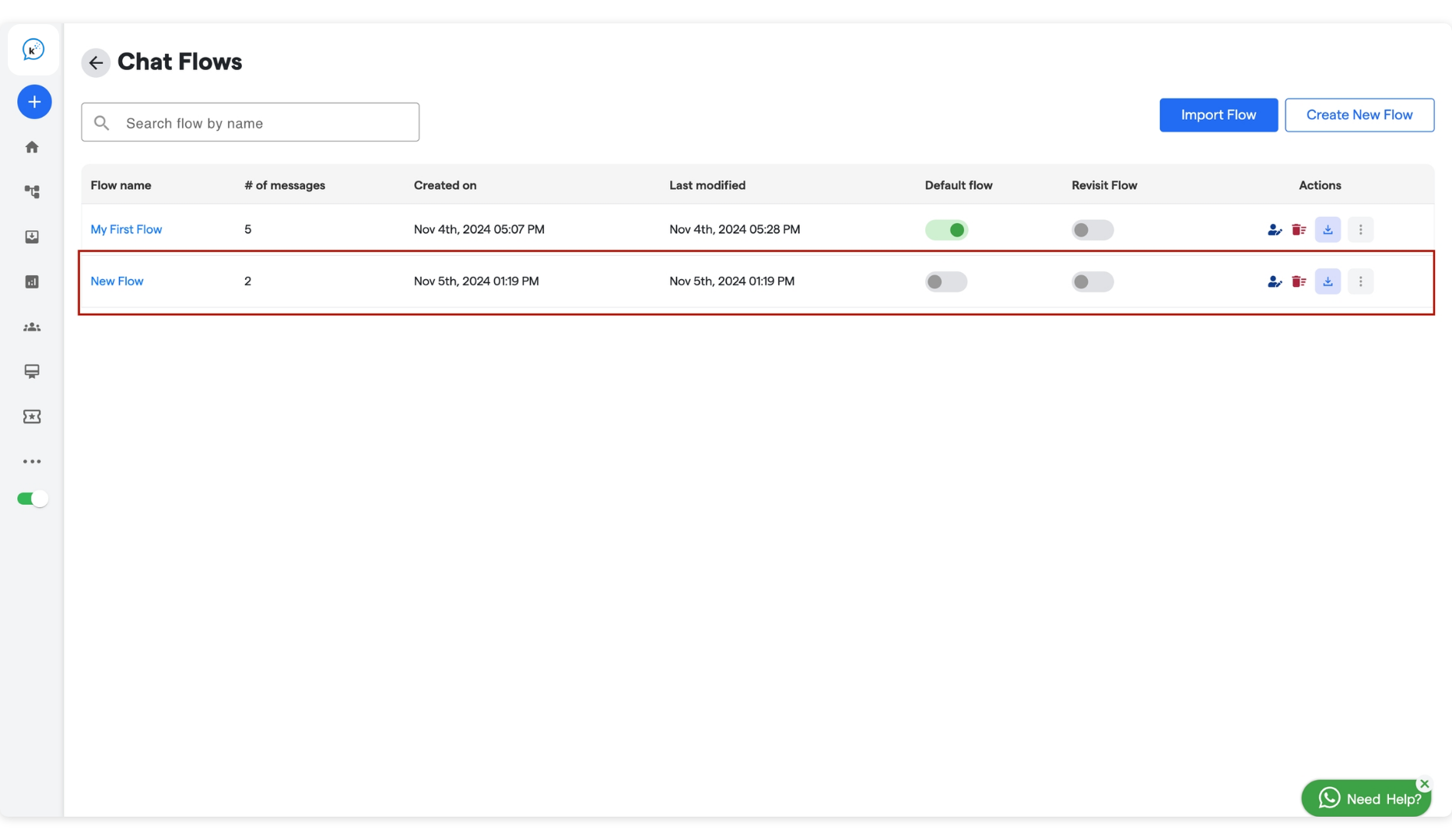
Click on “Create New Flow” (as shown in the screenshot).
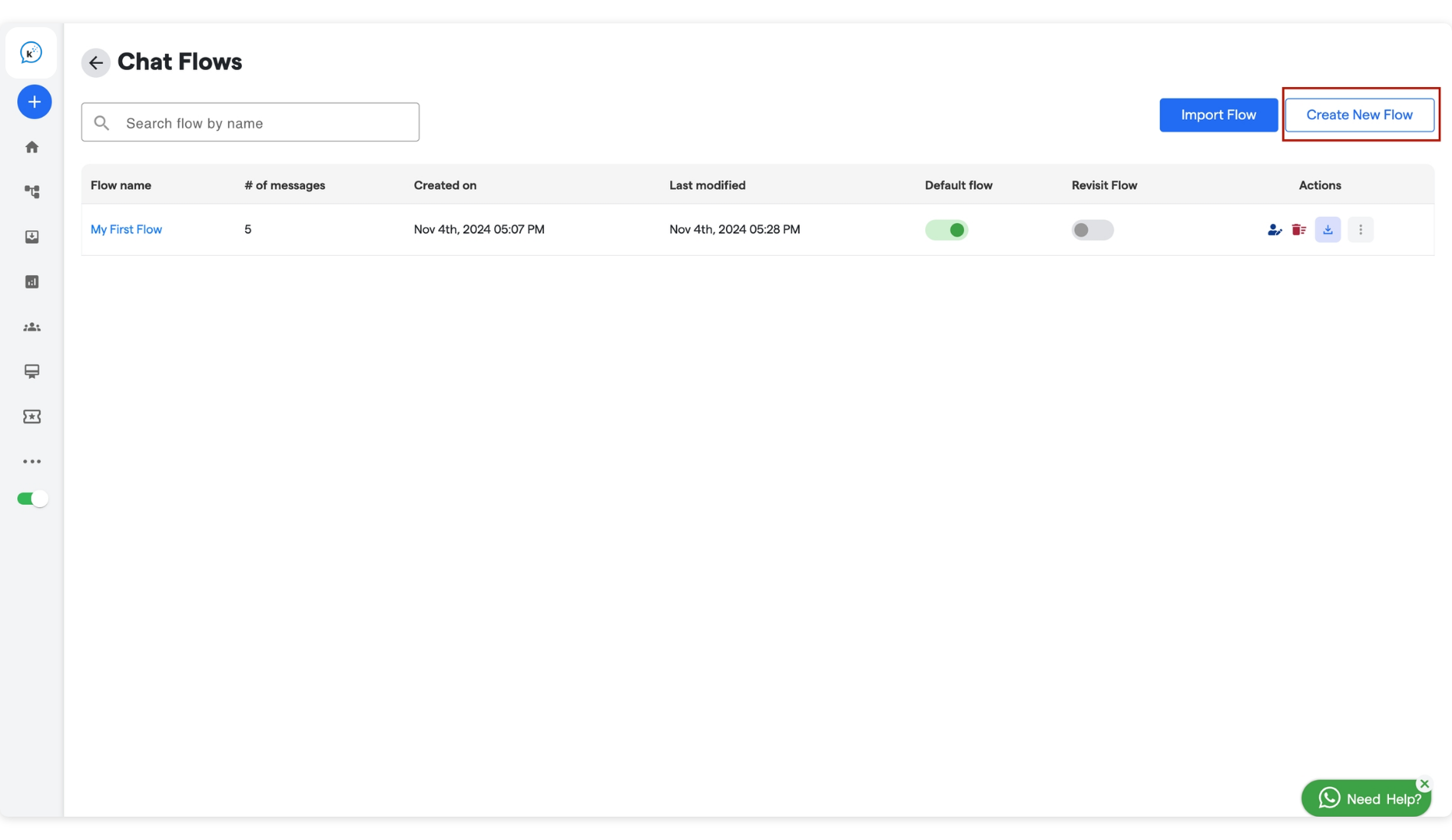
-
Now enter the “Flowname” and click on the “Create new flow”.
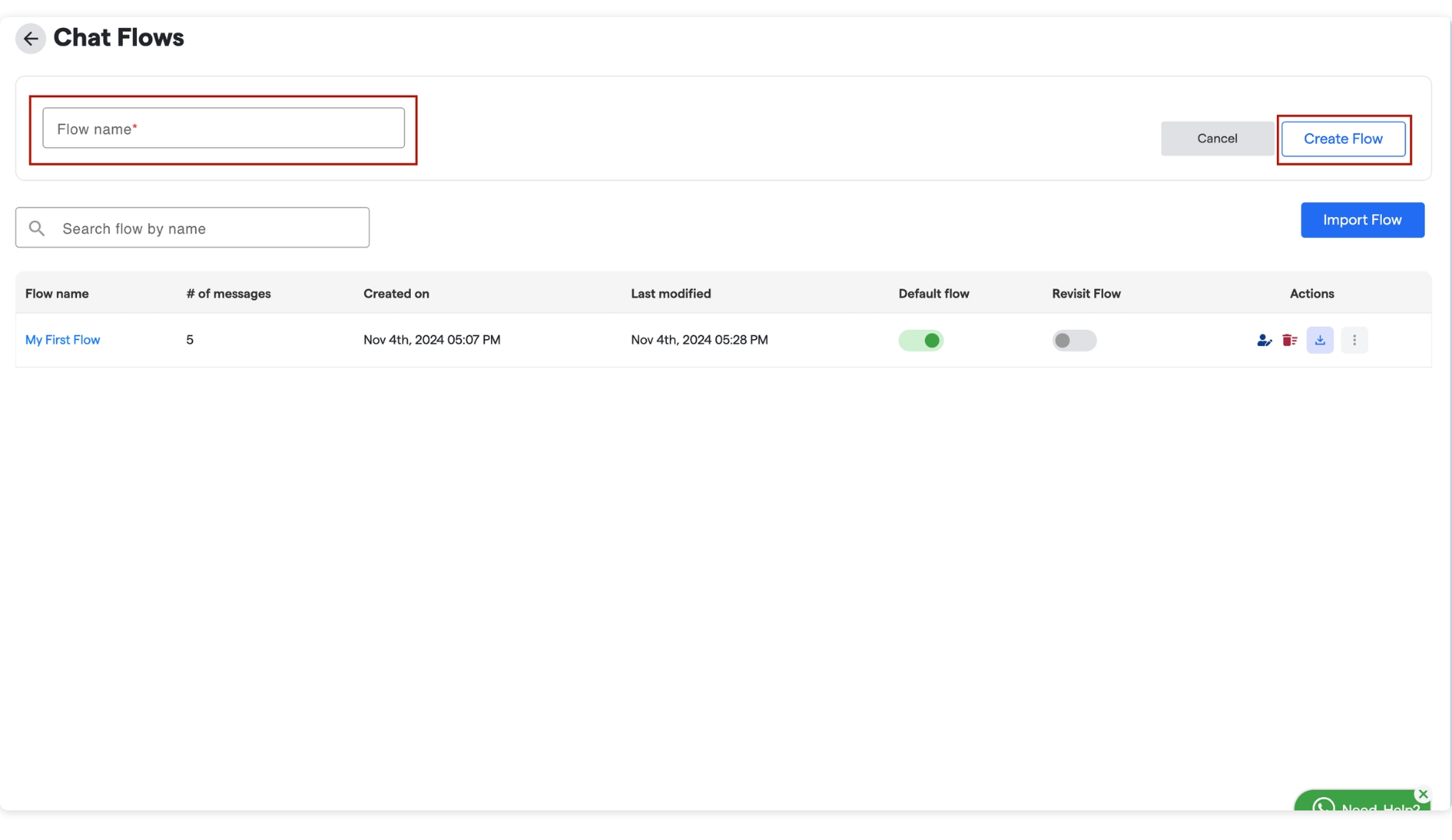
-
Configure this new chat flow . It will appear in the flow list on this page.
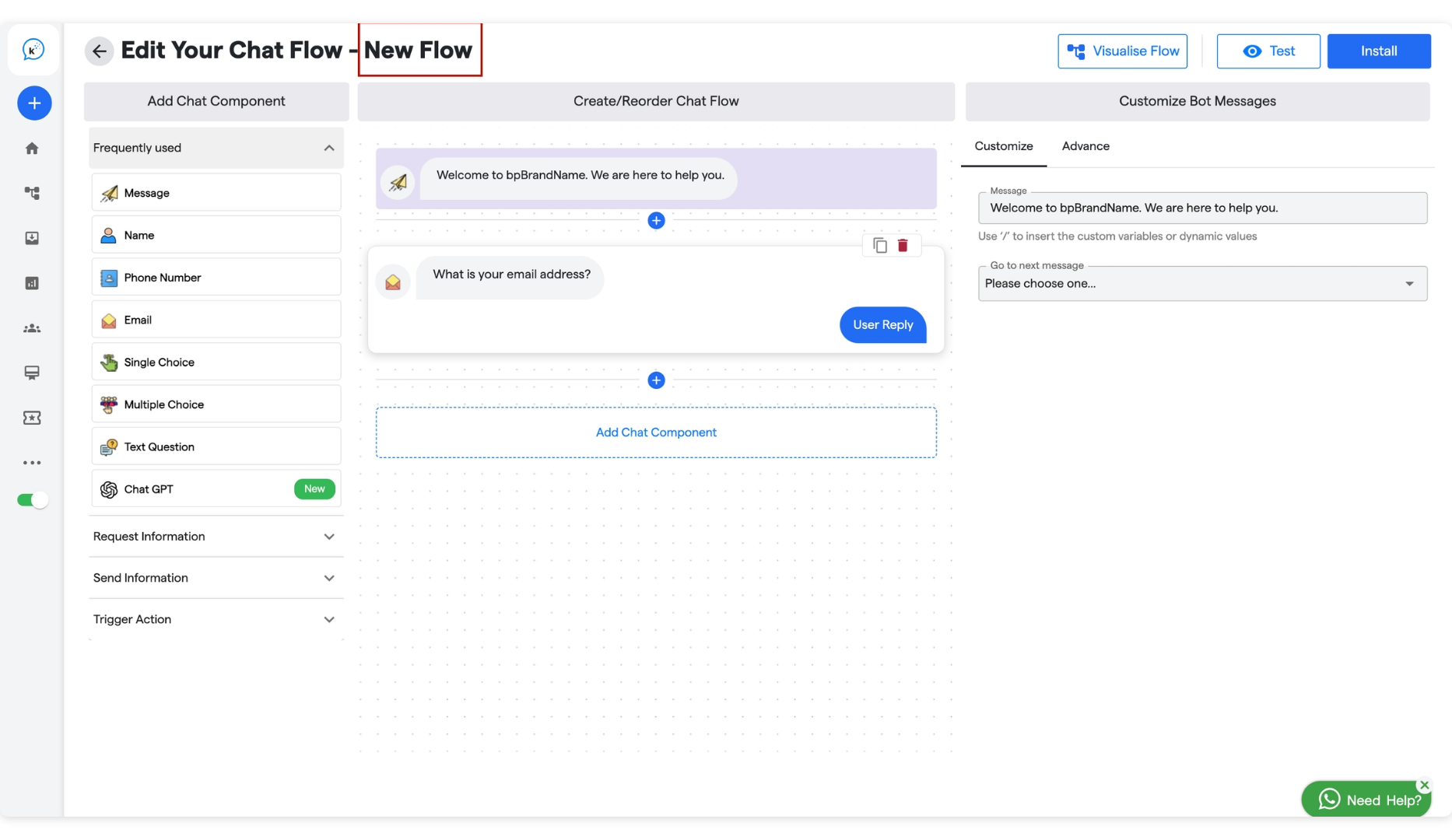
-
Select your website bot and navigate to the “Edit Your Chatflow” section.
-
Set Up Redirect in a Previous Flow:
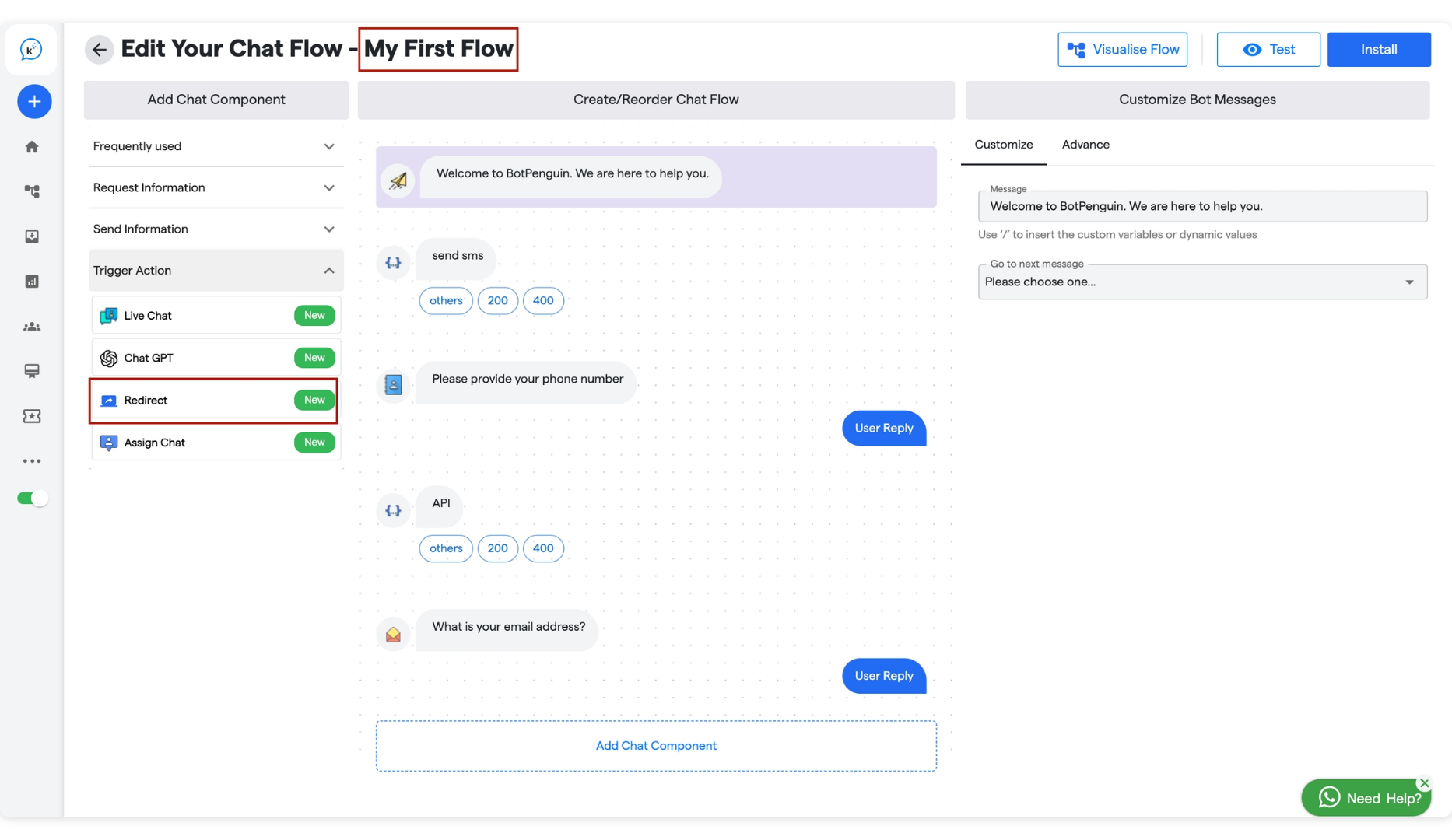
- Go to the existing flow where you want to trigger the new flow.
-
Add the “Redirect” chat component (as shown in the screenshot).
-
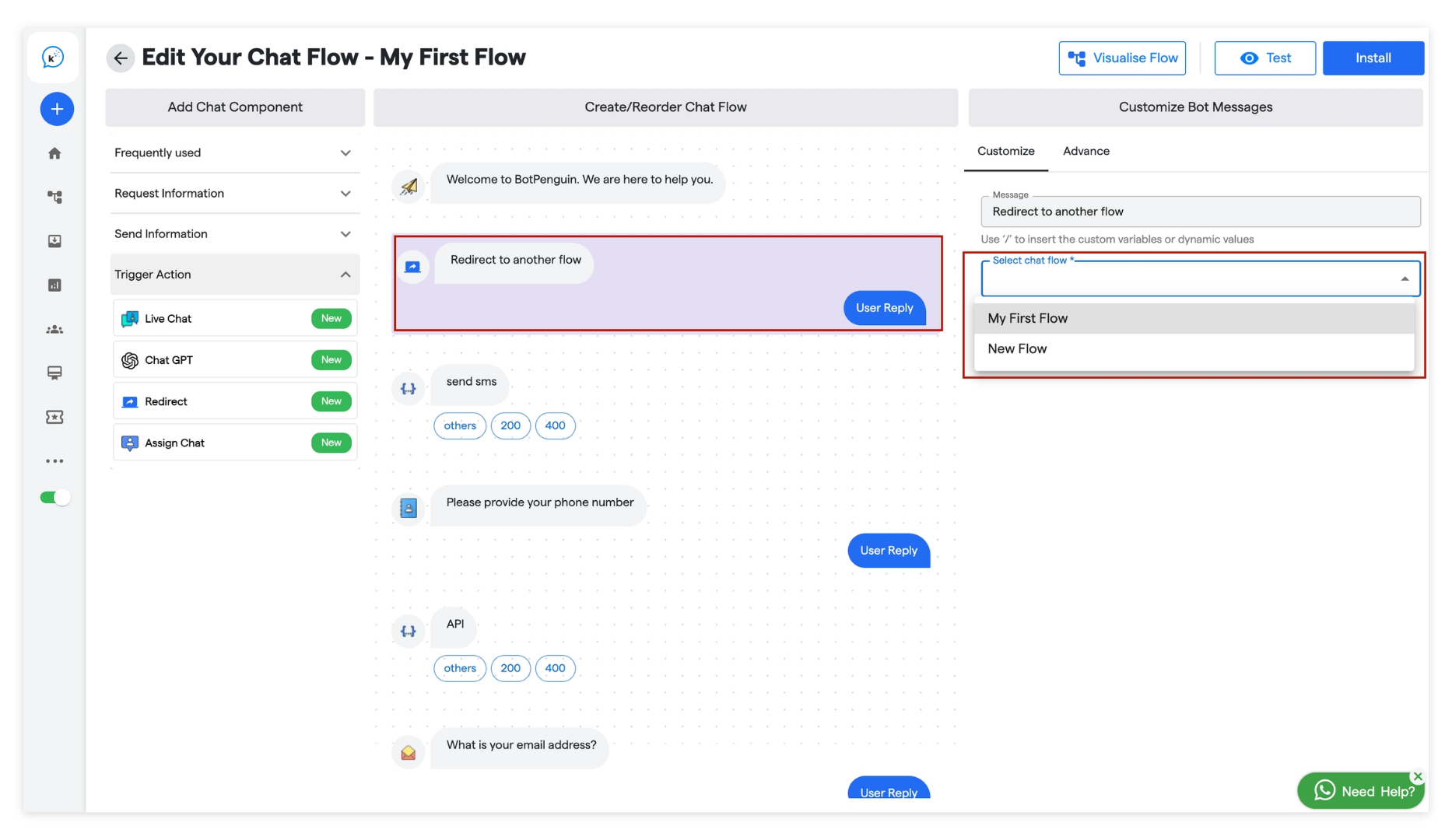
From the dropdown, select the flow you wish to redirect to.
-
Flow Redirection:
- Once set, the bot will automatically redirect to the selected flow when the redirect component is triggered within the conversation.